Press the plus icon on the bottom right of your screen
Press Create new Box note
How to Rename a Box Note
Press the three dots on the top right of the screen
Press “Rename this File”
Enter your desired name for the note
How to Use Box AI
Open your desired document
Press the icon on the bottom center
This will allow you to ask whatever question that you would like about the document that you choose. Once you close out of the AI session then it is deleted permanently as to abide with HIPAA compliance
How to Connect your Box account to Word on iPad OS
Open Microsoft word on your iPad
Press on the “Browse” option
On the left hand side select the “+ Add Storage” option
Select Box (not Box (Beta))
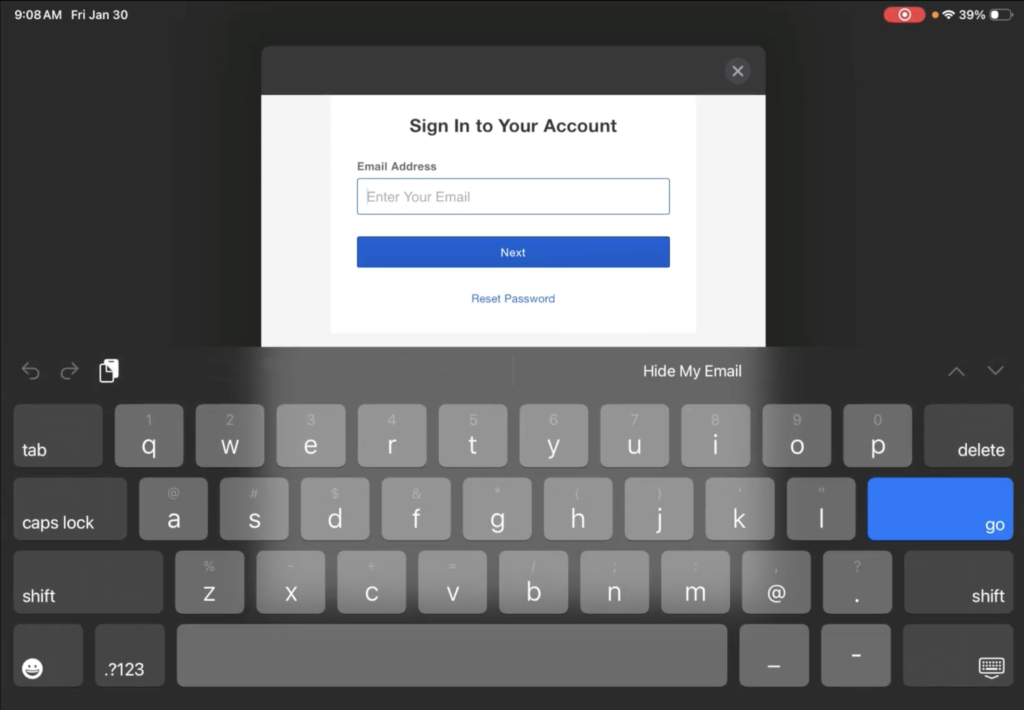
Sign in using your provided box credentials.
These credentials should be the same as your email
Your box account will now be able to be access within Microsoft word.
If you are unable to access documents from box then close the app and re-open it
How to Save a Word Doc to Box
On the mobile app you are only allowed to “Save as copy” (Word mobile is not able to overwrite a document saved in box)
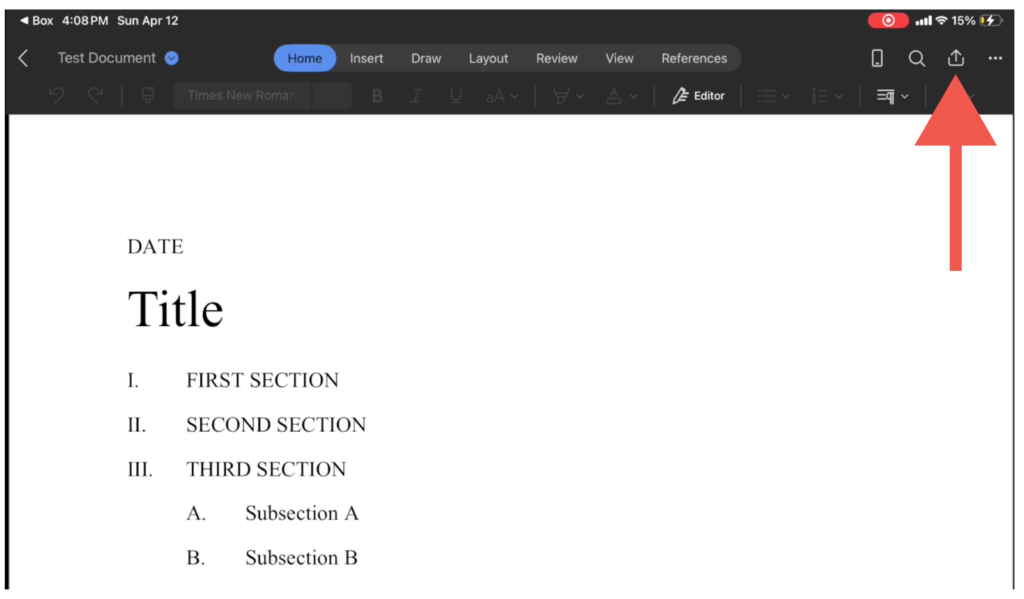
While inside your word Doc tap the “share” icon on the top right corner of your iPad. (it is to the left of the “three dots” icon and looks like an up arrow inside an open box.)
Press “Send as Copy”.
Choose the option for Box
Name the Document and Select the Destination
Press “Upload”
How to Make a Document Available Offline
Select the document in Box
Tap the “Three Dots” on the top right corner of the screen
Tap “Mak Available Offline”
How to Access Your Offline Documents
From the homepage tap the icon on the top left hand side. This will open a menu on the left hand side of your screen
Tap the “Offline” option
The documents displayed here will be available without a network connection.